



NICEPH App: Mobile Casino Download for Android & iOS
Mobile casino use becomes much simpler when deposits, games, account access, and withdrawals stay on one phone. NICEPH App is built around that routine, giving Android and iPhone users a direct way to reach their casino account without repeatedly opening a browser.
For someone already using Niceph, the App does not create a separate casino account. The same username, password, balance, and payment activity remain connected to the existing account. That small detail matters because mobile access should shorten the path to the lobby, not create another set of credentials to manage.
NICEPH App Specifications and Device Requirements
The current mobile build covered here is NICEPH 3.8.2, with separate installation methods for Android and iOS.
| Specification | Android | iPhone |
| Version | NICEPH 3.8.2 | NICEPH Mobile 3.8.2 |
| Installation | APK file | iOS mobile profile |
| Minimum OS | Android 8.0 | iOS 14 |
| App size | About 96 MB | Varies by installation |
| Recommended free storage | At least 300 MB | At least 300 MB |
| Connection | 4G, 5G, stable Wi-Fi | 4G, 5G, stable Wi-Fi |
| Login | Existing NICEPH account | Existing NICEPH account |
The 96 MB APK size should not be confused with the amount of storage the App may need during everyday use. Individual slots, live casino tables, images, animations, and other game assets can load separately after the App opens.
That is why keeping around 300 MB of free space is more sensible than installing with only 100 MB left on the phone.
A nearly full device can install successfully and still behave badly later: Menus may reload, games may take longer to open, and temporary files have less room to work.
Installing the NICEPH App on Android
Android uses an APK rather than a conventional store installation. The process is short, although Android may ask for permission because the package is being installed directly.
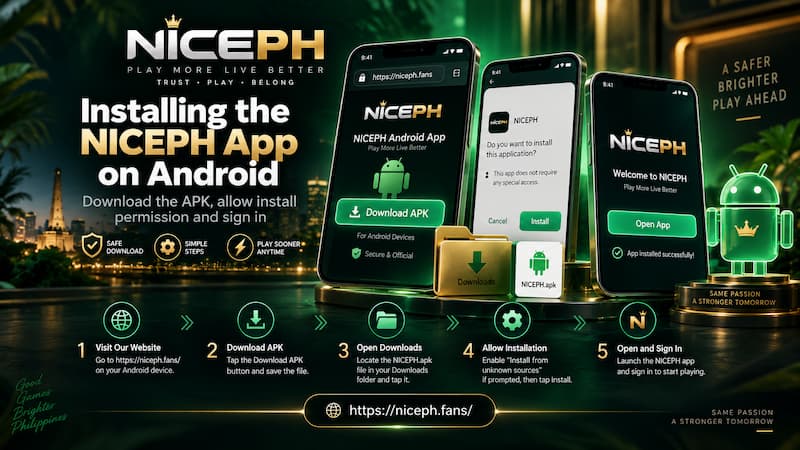
Installing the NICEPH App on Android
Android APK Installation
- Open the NICEPH mobile download area.
- Choose Android Download.
- Wait for the APK file to finish downloading.
- Open the phone’s Downloads folder.
- Tap the NICEPH APK.
- Allow installation from the browser or file manager if Android requests permission.
- Complete the installation.
- Open the App.
- Enter the existing NICEPH username and password.
The most common mistake here is tapping the file before the download is complete. A partially downloaded APK may fail immediately or appear as an invalid package.
Check the APK Before Opening It
Direct APK installation gives the user more responsibility than a normal Play Store install. Before tapping Install, check a few basic things:
- Download from the NICEPH source you intended to use.
- Avoid APK copies forwarded through chat groups or unknown file-sharing links.
- Check that the download finished normally.
- Do not disable Android security features permanently just to install one App.
- Keep enough storage available for both installation and game data.
An APK being small does not mean the whole casino is stored inside it. The App mainly provides access, while many games continue loading content through the internet.
This distinction becomes obvious when opening visually heavy titles or live tables. The App itself may launch quickly while a particular game still needs several seconds to connect.
Installing the NICEPH App on iPhone
The iPhone process is different. Instead of opening an APK, users follow the iOS mobile installation flow and approve the downloaded profile through Settings.
NICEPH iOS Installation
- Open the NICEPH download area in Safari.
- Tap iOS Download.
- Allow the profile to download.
- Open Settings.
- Look for the downloaded profile or open General.
- Enter VPN & Device Management.
- Select the NICEPH profile.
- Tap Install.
- Enter the iPhone passcode when requested.
- Finish the installation and return to the Home Screen.
Do not rush through the profile screen. iOS shows information about the profile before installation, giving the user a chance to confirm what is being added to the phone.
If the downloaded profile does not appear, return to Safari and check whether the download actually completed. In some cases, downloading it again is faster than repeatedly searching through Settings for a profile that was never saved correctly.
Login and Account Access Inside the App
Installing the App does not mean starting another NICEPH account.
The same login details used on desktop or through the mobile browser should be used inside the App. Once logged in, the account balance and casino access remain tied to that NICEPH account rather than the physical phone.
This becomes useful when switching devices. A player might deposit through GCash on a phone during the afternoon, open NICEPH on a laptop later, then return to the App at night. There is no reason to maintain separate mobile and desktop balances.
If login fails after installation, creating another account usually makes the situation more confusing. Check these first:
- Username spelling
- Password capitalization
- Internet connection
- Saved browser credentials versus the actual password
- Password-recovery options
A duplicate account can create unnecessary confusion around balances, payment details, promotions, and withdrawal history.
Deposits and Withdrawals on the NICEPH App
The biggest practical advantage of the App is keeping money movement and casino access on the same device.
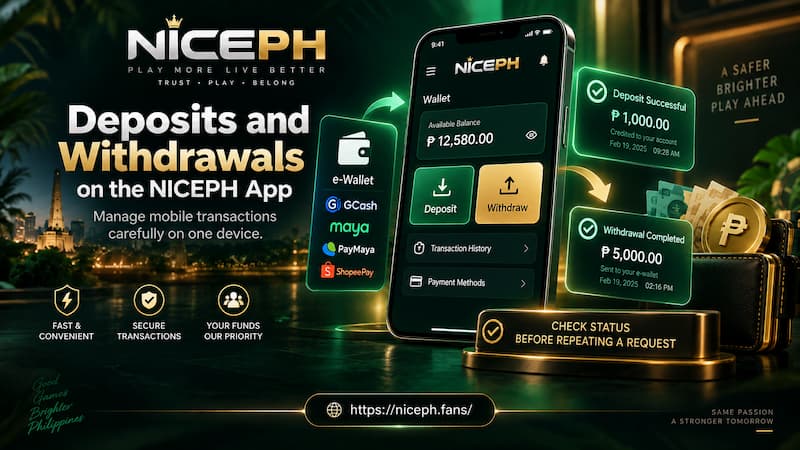
Deposits and Withdrawals on the NICEPH App
For Philippines-based users, a typical mobile routine may involve opening GCash, completing a Peso transaction, returning to NICEPH, checking the balance, then opening a game. Withdrawal requests can follow the same phone-first flow.
That convenience also makes it easier to tap twice when a page seems slow.
Before repeating a deposit or withdrawal request, check:
- The transaction amount
- Selected payment method
- Account or wallet details
- Current transaction status
- Whether the first request is still processing
A delayed confirmation does not automatically mean the transaction failed. Repeating it immediately can create two requests when only one was intended.
The App is most useful when it reduces friction without encouraging rushed decisions. A ten-second status check is often better than sending the same payment instruction again.
Games Inside the NICEPH App
A casino App works differently from a large offline mobile game.
The NICEPH installer does not need to contain every slot, card table, animation, sound file, and live stream in one package. Much of that content can load only when the player chooses a game.
That helps explain why the APK can remain around 96 MB while the casino lobby still contains far more content than could reasonably fit inside that file.
The trade-off is straightforward: Connection quality remains important after installation.
A slow game does not always mean the App itself is slow. The cause may instead be:
- A weak mobile signal
- Congested Wi-Fi
- A game-provider connection
- A live video stream
- Low free storage
- Temporary network switching
For example, a lightweight slot can open normally on 4G while a live dealer table struggles because it needs a continuous video feed. Treating both problems as an “App issue” leads to the wrong fix.
Storage, Mobile Data and Connection Quality
Three factors affect App performance more than the installation screen suggests: Storage, network stability, and the individual game being opened.
Storage
Keep roughly 300 MB free rather than operating right at the limit. Temporary files, cached graphics, updates, and other phone activity all compete for space.
Mobile Data
4G and 5G are usually sufficient for normal lobby use when the signal is steady. Slots generally tolerate mobile connections better than live video because they do not continuously stream a dealer table.
Wi-Fi
Stable Wi-Fi can be preferable for longer sessions, especially when opening live casino games.
The word stable matters more than the Wi-Fi icon. A weak router connection may perform worse than strong 5G.
Switching repeatedly between Wi-Fi and mobile data can also interrupt an active game connection. If a live table keeps reconnecting, staying on one reliable network is often better than constantly changing between two mediocre ones.
Updating the NICEPH App
Mobile casino builds change over time, so version numbers should be checked rather than assumed.
The build described here is 3.8.2. Before replacing an existing installation, compare the version currently on the phone with the version offered in the NICEPH download area.
For Android, an update may involve downloading and installing a newer APK. iPhone installation can differ depending on how the current iOS build is distributed.
Before updating:
- Make sure the account username and password are known.
- Download from the same trusted source used for installation.
- Check that enough storage remains.
- Avoid deleting a working App before confirming the replacement file is available.
This is particularly useful for players who normally stay logged in. Months of automatic login can make it surprisingly easy to forget the actual password.
NICEPH App or Mobile Browser?
Neither option is automatically better for every user.
| Use case | App | Mobile Browser |
| Frequent casino access | More convenient | Requires opening browser |
| Phone storage | Uses more | Uses less |
| Installation | Required | Not required |
| Home Screen access | Direct | Bookmark or shortcut |
| Updates | May require new package | Usually automatic |
| Existing account | Same login | Same login |
| Occasional use | Less necessary | Convenient |
The App suits frequent mobile access because it removes a few repetitive steps. Tap the icon, log in if necessary, and continue.
The browser makes more sense for someone who plays occasionally, prefers not to install an APK or profile, or keeps very little storage free.
There is no need to treat this as a permanent choice. The same NICEPH account can remain useful across both.
Common App Problems and Simple Fixes
APK Will Not Install
Check the Android version first. NICEPH 3.8.2 requires Android 8.0 or later.
Then check:
- Available storage
- Installation permission
- Whether the APK fully downloaded
- Whether an older package is interfering with installation
iPhone Profile Does Not Appear
Return to Safari and confirm the profile download completed. Then check Settings and General → VPN & Device Management.
If nothing appears, download the profile again rather than repeatedly changing unrelated iPhone settings.
App Opens but Games Are Slow
Test more than one game.
If every title is slow, the connection or device is the more likely cause. If only one provider or one live table is struggling, the problem may sit with that particular game connection.
Login Stops Working After Installation
Use the same NICEPH credentials already associated with the account. Check the password before creating anything new.